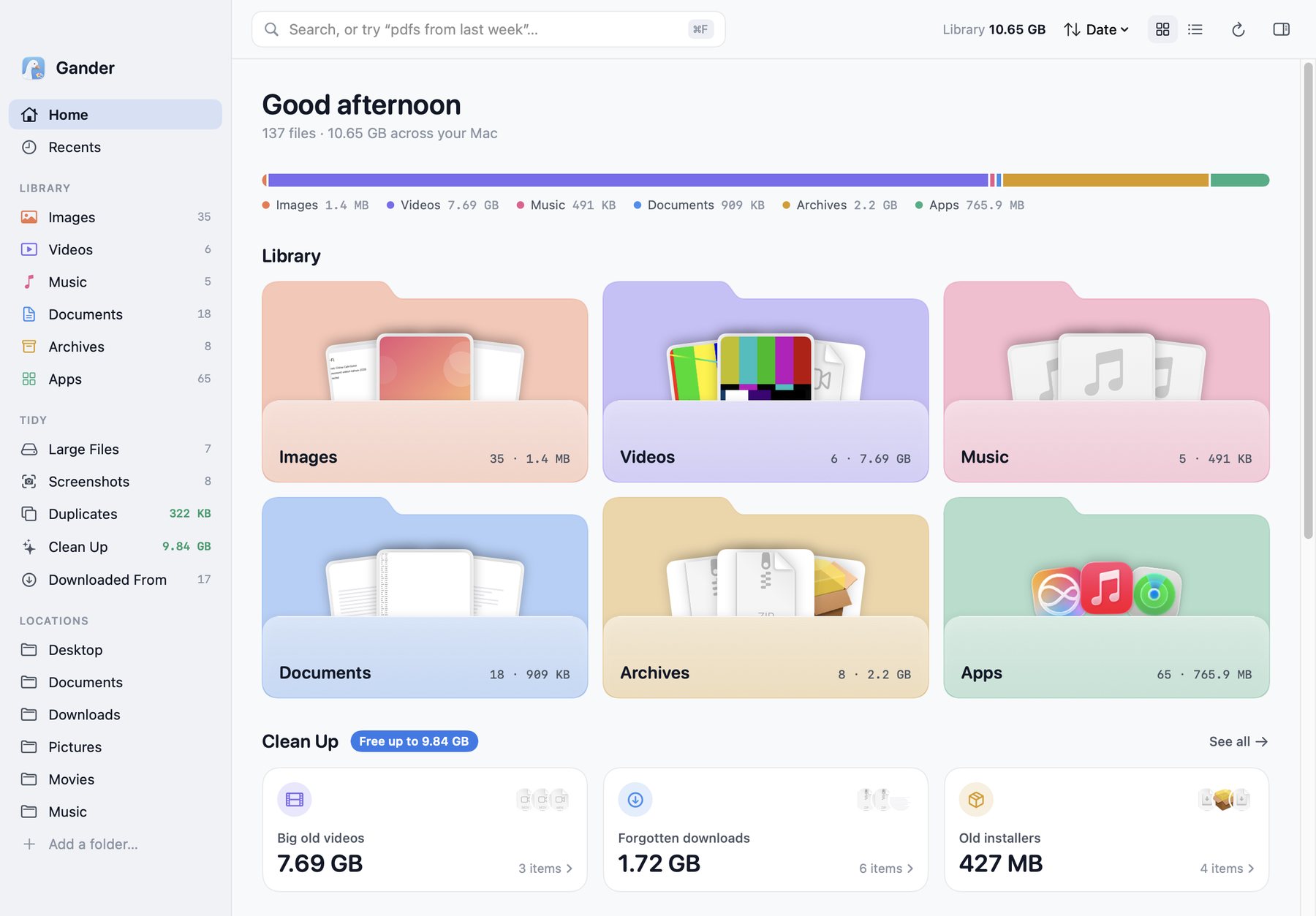
Gander shows your photos, documents, downloads and apps as big thumbnails instead of folder lists. Type what you remember, like “pdfs from last week”, and it finds the file. Then it helps you clear out what you no longer need.
A working demo over a sample Mac. Nothing to install.
Try:
This is a working demo of the app: search, Duplicates, Clean Up and Undo all behave as they do in the app, on sample files that are part of this page. Nothing you type is sent anywhere.
Watch
See Gander in 46 seconds.
A quick tour: every file as a thumbnail, search in plain English, text inside screenshots, where each download came from, and what’s safe to clear.
Screenshots of the real app, on sample files. The presenter, Zoon, and her voice are AI-generated.
Home
Every file on your Mac, on one page.
Finder opens on a list of folders. Gander opens on your files: six folders, one for each kind, each showing its newest three. A single bar shows where your disk space went. Below it sit the things worth clearing and the places your downloads came from.
Features
Built around how files actually get lost.
You forget the name. You remember what was in it, or when it arrived, or where it came from. Gander lets you search by any of those.
Search⌘F
Find any file on your Mac by describing it.
“pdfs from gmail this month” becomes three filters you can see: a type, a date and a source. If Gander read you wrong, click a chip to switch it off.
Understands type, date, size and where a file came from
Looks through your whole home folder, not just a few folders
Matches names, the text inside PDFs and documents, and the text inside images
The Wi-Fi password, the tracking number, the quote you saved once. Gander reads the text in your screenshots and recent photos with Apple’s Vision, on your Mac, and makes it searchable.
Hover any image for a Copy text button
Select several images and copy all their text at once
The Inspector shows the text it found
Also finds pictures by what they show, such as sky, people or charts
macOS quietly records the address every download came from. Gander turns that into a page of sources: Gmail, ChatGPT, Canva, GitHub, Slack, or any website.
Find the invoice by remembering the email, not the file name
Gander finds files that are byte-for-byte identical, wherever they sit, and shows how much space the extra copies take. It picks one to keep; click another to change its mind.
Compared by content (SHA-256), never by name alone
Prefers the copy outside Downloads and without “(1)” in its name
Files that live only in iCloud are skipped, so nothing gets downloaded
Old installers, downloads you never opened again, last season’s screenshots, big old videos and apps you stopped using. You review each list, untick what you want to keep, and the rest goes to the Trash.
Nothing is ever deleted outright
One click on Undo puts the last batch back where it was
Finder is good at opening a folder you already know. Here is how the two compare on the jobs that take the time.
Everyday job
Finder
Gander
Seeing what you have
Folder by folder, the way you filed things
Six folders by type, with thumbnails
Searching
A search field, then rules you add one at a time
Plain English, shown back as filters
Text inside screenshots
Spotlight can find it; copying the text is one image at a time
Searchable, and copy from many at once
Where a download came from
A “Where from” line in Get Info, one file at a time
Every download grouped by source
Duplicate files
Nothing built in
Identical copies, with the space you get back
Freeing up space
In System Settings, away from your files
Clean Up lists you review, with Undo
Searching from any app
Spotlight, ⌘Space
Quick Search, ⇧⌘Space
Compared with Finder in current macOS. Gander shows the same files and “Show in Finder” is always one click away, so you can keep using both.
Which Finder alternative
A different kind of Finder replacement.
Most Finder alternatives for Mac are dual-pane file managers, such as Commander One, ForkLift, Path Finder and Marta. They are built for moving files between two folders, servers and drives. Gander is a visual file browser, built for the other half of the job: seeing what you have and finding the one file you need.
Pick Gander if you
remember what a file looked like, not what it was called
keep everything in Downloads and on the Desktop
want search that takes a sentence instead of a rule builder
want duplicates and old clutter found for you
Pick a dual-pane file manager if you
copy and move files between two folders all day
connect to FTP, SFTP or cloud storage
rename files in batches or sync folders
want Finder’s folder tree with more panes and tabs
A small search panel from any app, with the same plain English. Return opens the file, Option-Return shows it in Finder.
Latest downloads in the menu bar
The last ten files to land in Downloads, with thumbnails. Drag one straight into Mail or Slack.
Real Quick Look Space
Press Space for the macOS preview. The arrow keys keep walking through your files behind it.
Always current
Save, download or delete a file anywhere and Gander updates by itself within seconds.
Narrow a shelf by type
Chips above every shelf, such as PDF, XLSX or PNG, each with a count.
Inspector ⌘I
A larger preview, size, dates, the folder, the download source and any text found in the image.
Grid or list, light or dark
Bigger or smaller cards with ⌘+ and ⌘−. Follows your Mac’s appearance.
Finder’s keys still work
Arrows to move, Return to open, Shift-click for a range, ⌘⌫ for the Trash.
Privacy
A real Mac app. Your files stay on your Mac.
Gander is written in SwiftUI, not a web page in a window. Reading text in images and comparing files both happen on your Mac. There is no account, no cloud and no upload.
Files you clear out go to the Trash, and Undo puts the last batch back.
Requires
macOS 14 Sonoma or later
Runs on
Apple silicon (M1 or later)
Size
Under 5 MB
Text recognition
Apple Vision, on your Mac
Duplicates
SHA-256, on your Mac
Network
Only to check your licence key
Removing files
Trash only, with Undo
Licence
One-time purchase
Pricing
Pay once. Keep it.
No subscription and no account. One price, every feature. Try the live demo above before you buy.
It is a Finder alternative you run beside Finder, not something that removes it. macOS does not let any app replace Finder completely. Gander shows the same files in a different way: by type, with thumbnails, searchable in plain English. Every file has a Show in Finder command, so you can move between the two whenever you like.
What is the best Finder alternative for Mac?
It depends on the job. For moving files between folders, servers and drives, a dual-pane file manager such as Commander One, ForkLift or Path Finder fits best. For seeing what is on your Mac, finding a file you only half remember and clearing out clutter, Gander is built for exactly that. Our guide to Finder alternatives compares them.
Can I download Gander before I buy?
Yes. The download is the full app, but it opens on an Activate screen and shows nothing else until you enter a licence key. Buy a key on this page (or with the Buy button in the app), paste it in, and Gander starts. The setup guide walks through it.
Is Gander free?
No. Gander is a one-time purchase with no subscription, and the app needs a licence key to open. You can try how it works first with the live demo on this page, which runs in your browser on sample files.
Is there a File Explorer for Mac?
Finder is the Mac’s built-in equivalent of Windows File Explorer. If you have moved from Windows and miss seeing everything in one window with a search box that works, Gander gives you that: every file by type, with thumbnails, and search in plain English.
Do my files get uploaded anywhere?
No. Search, text recognition and duplicate checks all run on your Mac. Gander has no account and no cloud. The only time it uses the network is to check your licence key.
Will it delete my files?
Not by itself, and never outright. Clean Up and Duplicates show you a list first. What you choose to remove goes to the macOS Trash, and an Undo button puts the last batch back where it was.
Why does it ask for access to Desktop, Documents and Downloads?
macOS protects those folders, and every app has to ask before it can read them. Gander needs that access to show you what is in them. You can change it at any time in System Settings, under Privacy & Security, Files and Folders.
How is it different from Spotlight?
Spotlight is built to open one thing quickly. Gander is for looking through many: it shows every match as a thumbnail, tells you how it read your search, groups downloads by where they came from, and finds duplicates and clutter, which Spotlight does not do.
Which Macs does it run on?
Any Mac with Apple silicon (M1 or later) on macOS 14 Sonoma or newer. Intel Macs are not supported at the moment.
Is it a subscription?
No. You pay once and keep the app. Updates are free.
Can I get a refund?
No. Gander is a digital product delivered instantly, so all sales are final. Try the live demo on this page first, and check that your Mac is Apple silicon on macOS 14 or later. If something doesn’t work after you buy, email us and we’ll do our best to fix it. The one exception: post about Gander on Reddit or X, and when the post reaches 2,000 views you get your whole purchase back. The terms of sale have the details.
Does it work offline?
Yes. Everything Gander does with your files happens on your Mac, with or without a connection.
Have a gander at your files.
A Finder alternative for Mac that is easy to look at and easy to search.
 Gander